Grok Bot widgets on iPhone: usage, alerts, Pace and streak
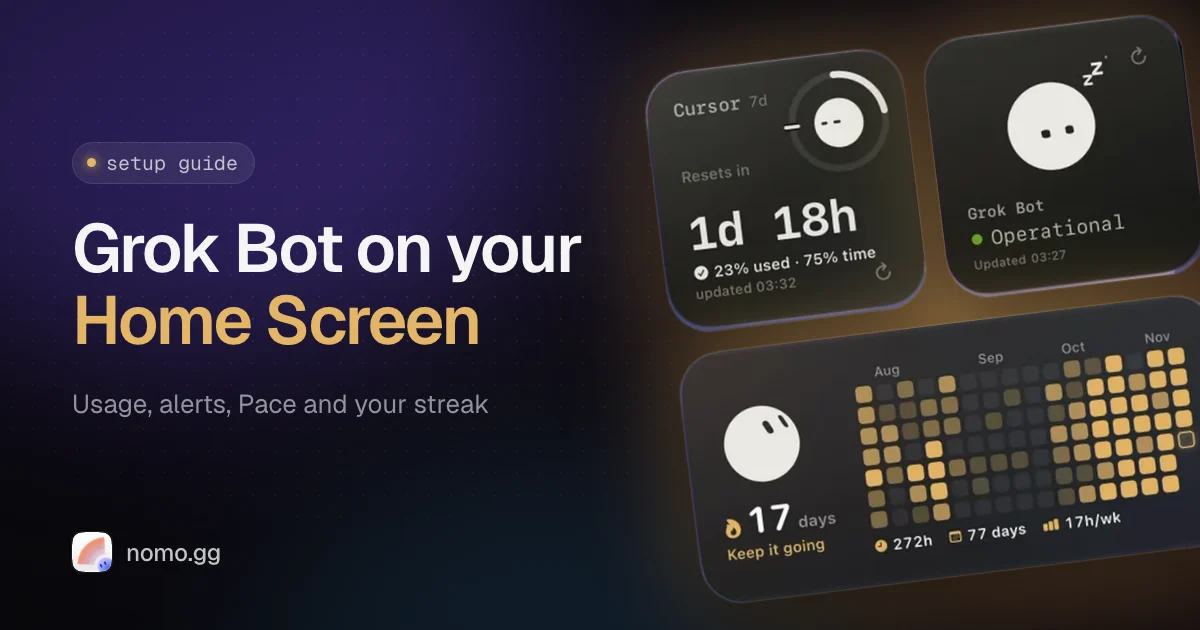
Grok Bot has no Home Screen widget of its own, but you can put one on your iPhone with Nomo, with no computer. For free you get a Grok Bot status widget, a usage widget for your weekly pool, and alerts at 70%, 90% and 100%. Nomo Pro adds Nomo Pace, which tells you mid-week whether your usage will last, and, from Nomo 2.4.2, your real Grok Bot token counts with a streak and heatmap. The status widget needs nothing. Everything else needs one sign-in: the Cursor connection in Nomo.
What you get, free and Pro#
All of it works from your phone. There's nothing to install on a computer.
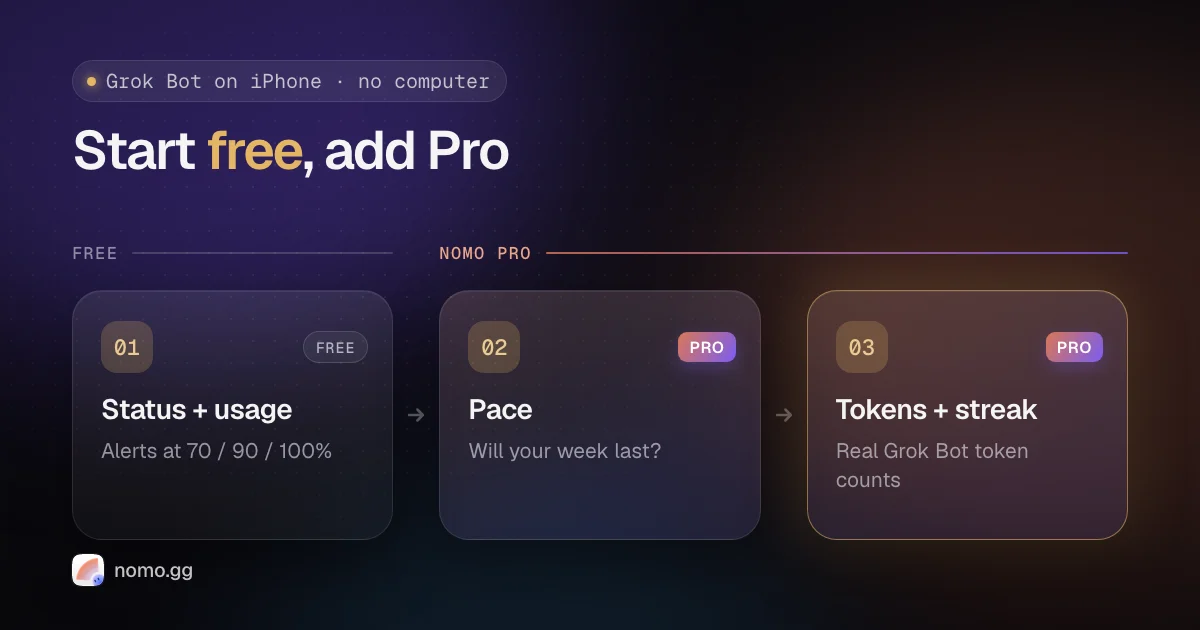
| What you get | What it needs | |
|---|---|---|
| Free | Status widget, status alerts | Nothing. No sign-in. |
| Free | Usage widget, usage alerts at 70 / 90 / 100% | The Cursor connection in Nomo |
| Pro | Nomo Pace | The same sign-in |
| Pro | Grok Bot tokens, streak and heatmap | The same sign-in, Nomo 2.4.2 |
Nomo Pro is $4.99 a month or $34.99 a year, billed by Apple. Everything in the free rows stays free, with no account and no ads.
Grok Bot has been my teammate for a month, honestly my only one. It burns through the week fast, so I built Nomo Pace for it: how much I've used against how much time is left before the reset. One look tells me if I'm going too fast.
Sign-in and supported plans#
You need one sign-in: the Cursor connection in Nomo. Sign in to Cursor with the same account you use for Grok Bot (on The X Subscription, that's your Grok or X account). The status widget and status alerts need no sign-in.
What Nomo's usage shows depends on your plan (as of November 2026):
| Plan | Nomo's usage | Grok Bot's limit |
|---|---|---|
| The X Subscription (Premium, Super, Ultra) | One Weekly row | A weekly pool shared with Cursor. Shown in Nomo |
| Legacy Cursor plans (Pro, Pro+, Ultra) | Two monthly pools, Cursor Models and Other Models | Grok Bot's own weekly limit. Not shown in Nomo |
How the limits differ by plan is in how the Grok Bot usage limit works. The official word is in xAI's Grok Bot FAQ and Cursor's usage limits help.
Part 1: Grok Bot status and usage widgets (free)#
You need the free Nomo app from the App Store and about five minutes. The status widget and status alerts need no sign-in. The usage widget and usage alerts need the Cursor sign-in below.
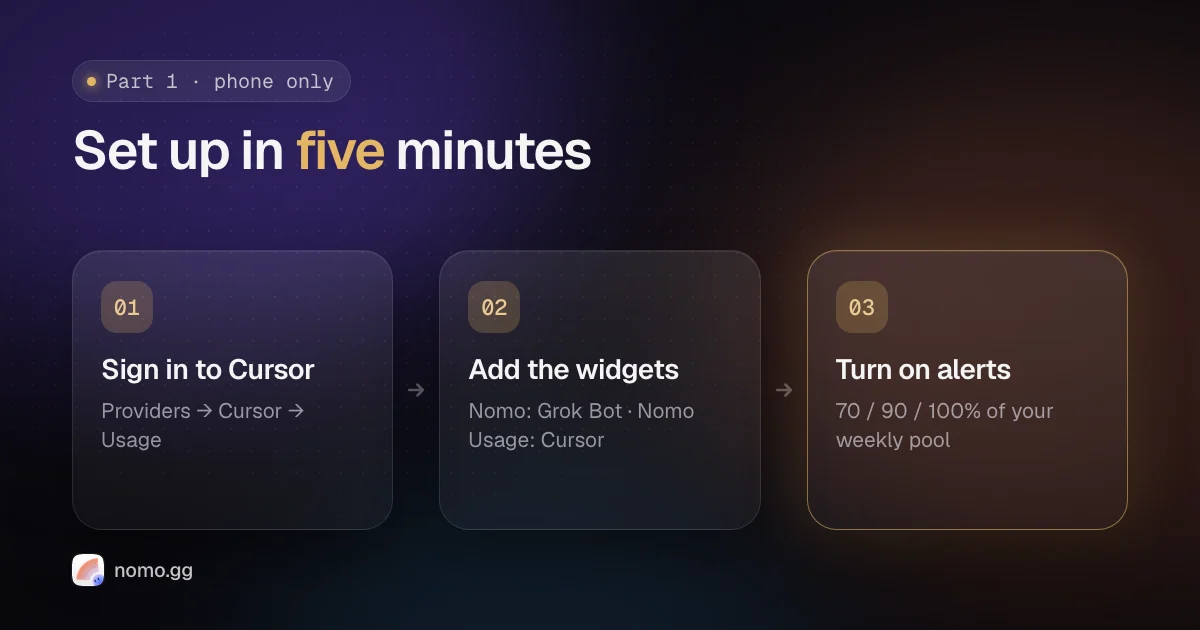
Sign in to Cursor in Nomo#
Nomo reads Grok Bot's numbers from your Cursor account, the same numbers Cursor's dashboard shows.
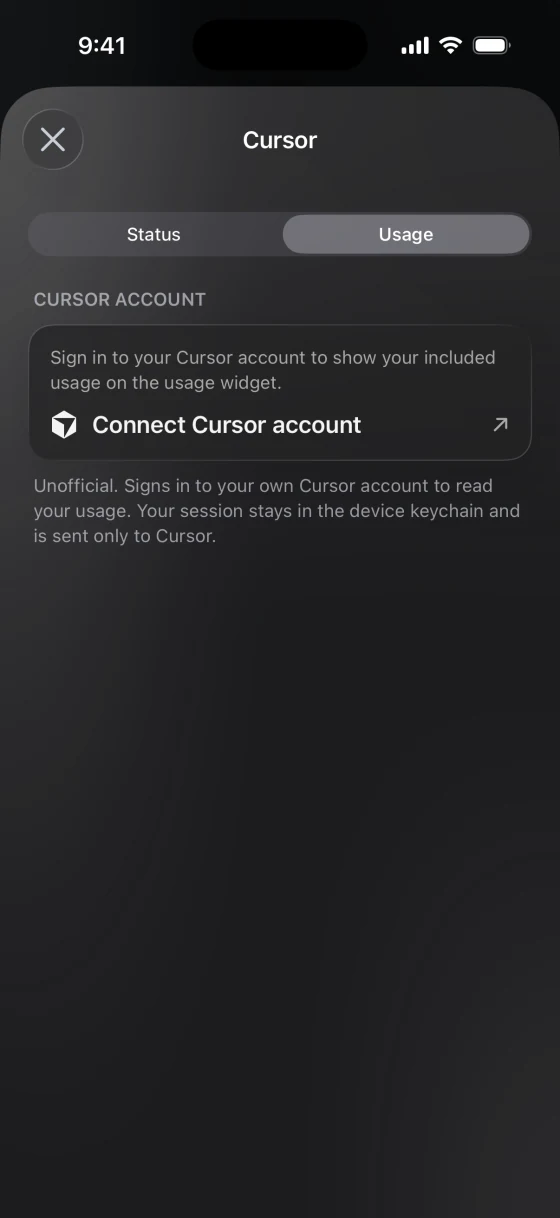
- Open Nomo, go to the Providers tab, tap Cursor, then Usage at the top.
- Tap Connect Cursor account. iOS asks to use cursor.com to sign in. Tap Continue.
- Sign in on Cursor's page with the same account you use for Grok Bot. The sign-in happens in Safari, so passkeys and password managers work.
The page closes by itself and your usage appears. There's no cookie or token to copy and paste. Sign in again about every 60 days. Your sign-in stays in the iPhone's keychain and goes only to Cursor, never to Nomo's server. To stop, tap Disconnect on the same screen.
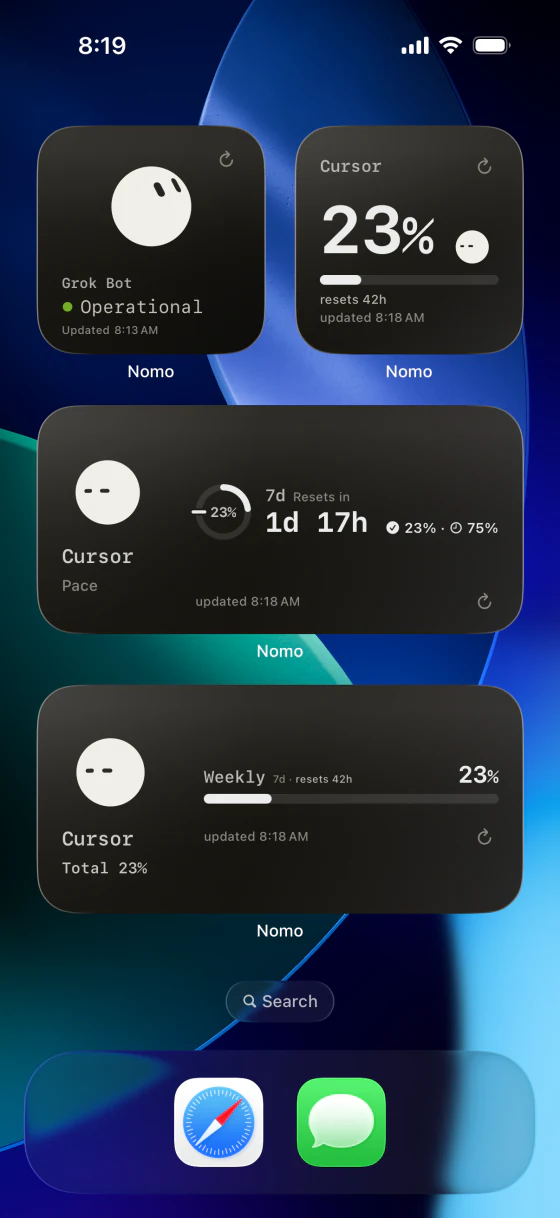
Add the Grok Bot status widget#
This one needs no sign-in at all. It tells you whether Grok Bot is up right now.
- Touch and hold an empty spot on your Home Screen, tap Edit, then Add Widget, and search for Nomo.
- Add the widget called Nomo.
- Touch and hold it, tap Edit Widget, set Provider to Cursor and Service to Grok Bot.
The widget swaps the Cursor logo for an animated Grok bot. It sleeps at night, looks worried when the service is degraded or partly down, and breaks during a major outage. The medium size adds the last 30 days and an uptime percent.
Add the usage widget#
- Add Nomo Usage the same way.
- Tap Edit Widget, set Provider to Cursor, and pick your Account.
- Optional: Cursor icon picks Grok Bot or Cursor logo.
On The X Subscription, the widget shows one Weekly row: the pool Cursor shares with Grok Bot. On a legacy Cursor plan you see Cursor Models and Other Models instead. Bars turn amber at 70% and red at 90%. The Grok bot's mood follows your usage too: worried from 70%, broken at 100%, asleep at 0%.
Turn on alerts#
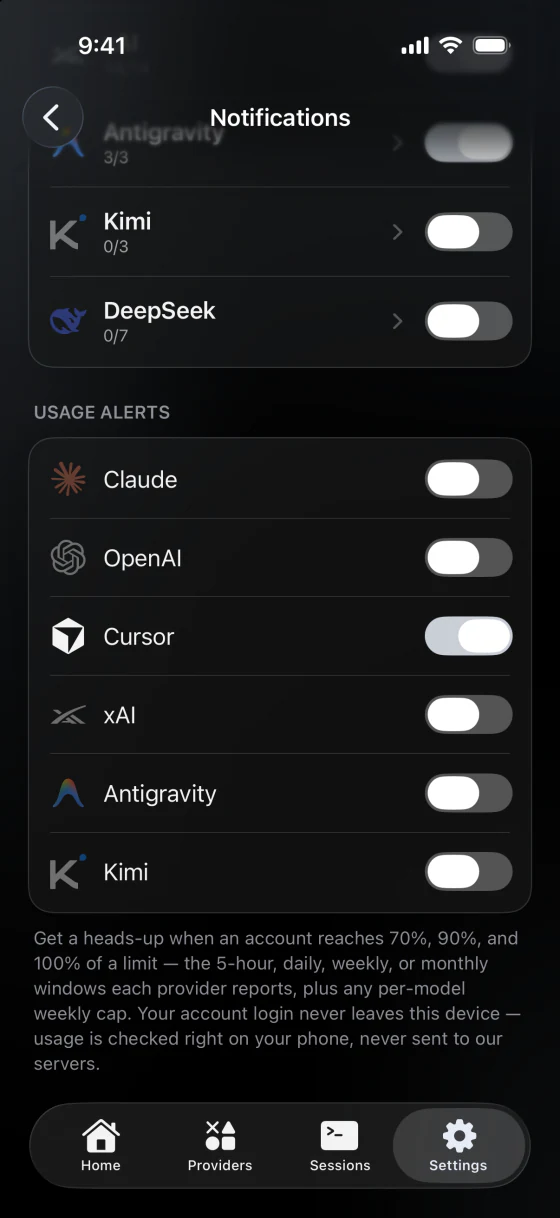
- In Nomo, open Settings → Alerts.
- Under Usage alerts, turn on your Cursor account. You'll get a heads-up at 70%, 90% and 100% of the weekly pool.
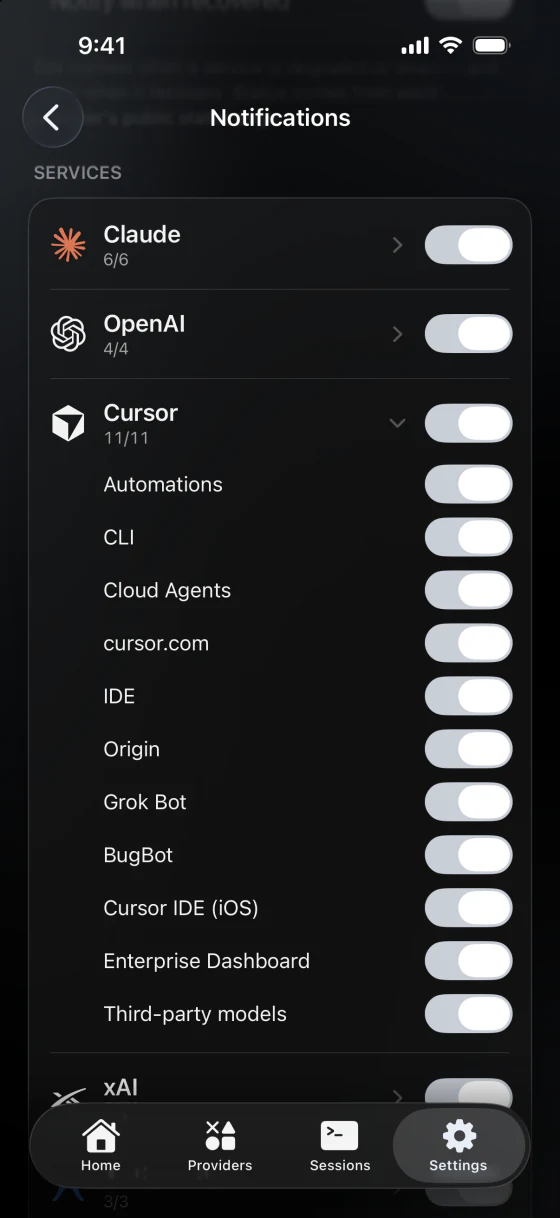
- Turn on Status alerts (no sign-in needed), open Services → Cursor, and leave Grok Bot on. Turn off the services you don't use.
Notify when recovered is on by default, so you also hear when Grok Bot comes back. Leave Nomo in the background instead of swiping it away: iOS stops waking a force-quit app, so alerts can pause until you open it again. Details are in usage alerts in the docs.
Part 2: Will your week last? Nomo Pace Pro#
A percentage alone doesn't tell you much on a Tuesday. Nomo Pace compares how much of the pool you've used with how much of the week has gone by.
In the recording above, Cursor 7d reads 23% used · 75% time: used is lower than time, so the pool lasts and the widget counts down Resets in 1d 18h. When you're going too fast, it shows Runs out in in amber, with an estimate such as ~2d 6h. Right after a reset it says Too early to tell.
- Add Nomo Pace (its gallery description reads "👑 Nomo Pro · Know if your usage runs out before it resets, at your current pace.").
- Tap Edit Widget, set Provider to Cursor, then pick your Account and Window.
It also comes in Lock Screen sizes, and the same line appears under your limits on Nomo's Usage page. Some Cursor plans have no pace: the widget then says "Pace isn't available for this plan". See Nomo Pace in the docs.
Part 3: Grok Bot tokens and streak Pro#
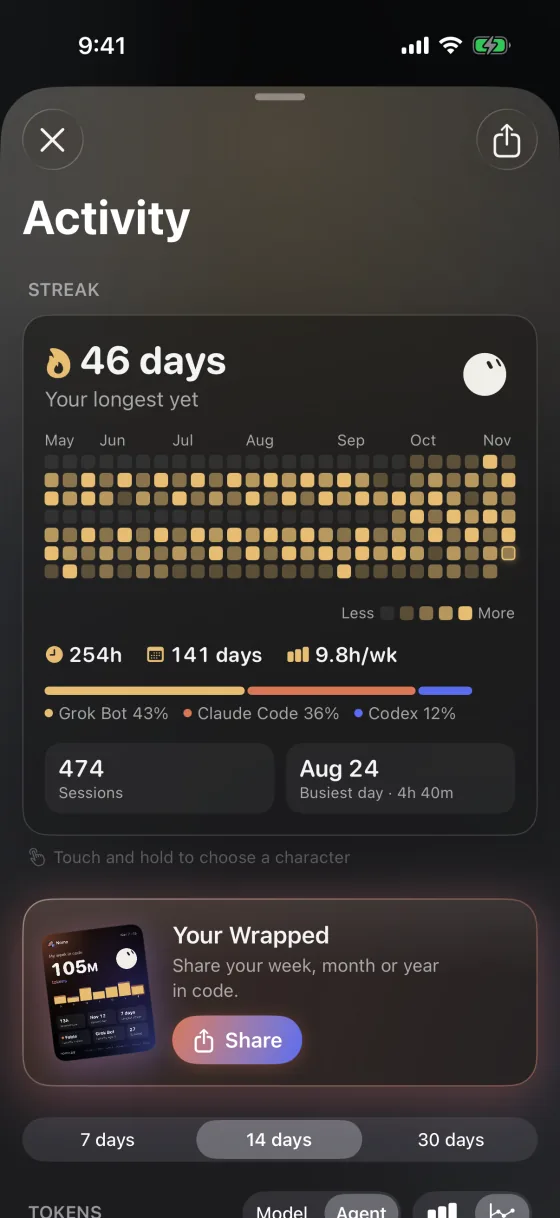
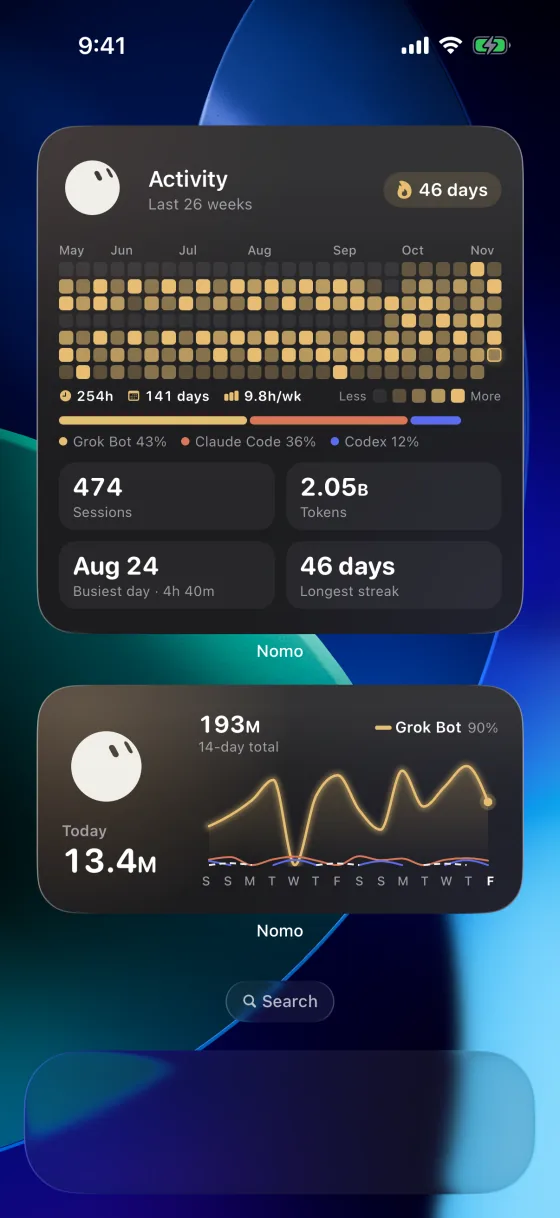
From Nomo 2.4.2, the Cursor connection also brings in how many tokens Grok Bot used each day. Two widgets use them: Nomo Tokens charts the tokens, and Nomo Activity draws your days as a heatmap, like the one on a GitHub profile, with your streak beside it. Your own Cursor editor and CLI use shows up too, as its own Cursor line.
The docs keep how Grok Bot counts up to date under Grok Bot on the Pro widgets page.
See it on the Activity screen#
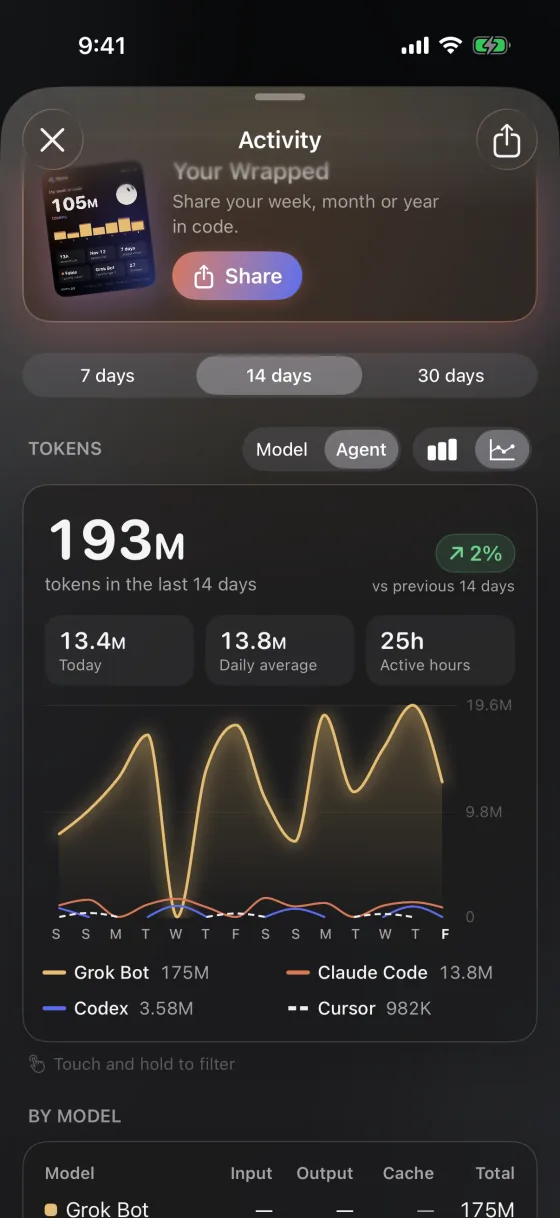
There's no setting to turn on. Once Cursor is connected, open the Activity screen in Nomo: the first time, your last month shows within seconds and older days fill in after that.
- The Tokens chart groups by Model or Agent and draws Bars or Lines. Grok Bot gets its own gold line.
- Touch and hold the Tokens card to flip it and choose which agents show.
- Touch and hold the Streak card to flip it and pick a character, Grok Bot included.
Details in the docs: the Tokens chart, choosing agents and the character.
Add Nomo Activity and pick the Grok Bot character#
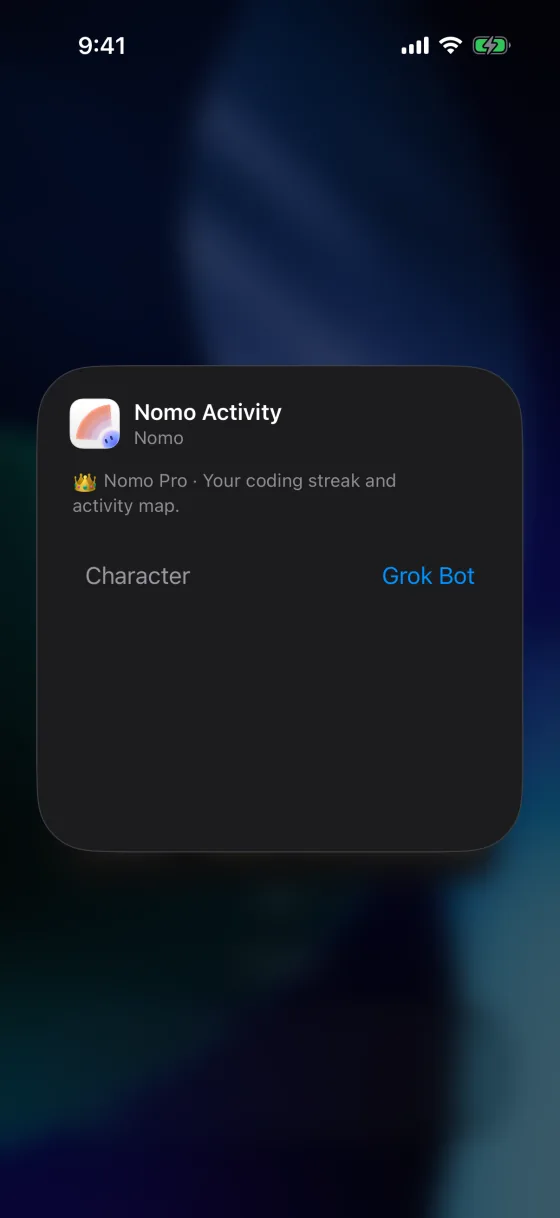
- Add Nomo Activity from the widget gallery.
- Tap Edit Widget, then Character, and pick Grok Bot.
The map, today's square, the streak flame and the badge turn gold. A day counts when Grok Bot used any tokens that day, whether you used it from your phone, the web or a computer.
Add Nomo Tokens#
Add Nomo Tokens the same way. Grok Bot's daily tokens appear in it next to any other agents you track. In Edit Widget, Group by picks Model or Agent, Style picks Bars or Lines, and Agents picks which agents show.
Only counts are read: tokens per hour, sent from Cursor's server straight to your iPhone. Nothing is uploaded to Nomo, and no message content is read. More in Privacy on the Pro widgets page in the docs.
When do the widgets update?#
Not in real time. iOS has the final say on when a widget refreshes.
- Nomo Usage: asks iOS for an update about every 10 minutes, but iOS decides when it actually happens.
- Status widget: about every 15 minutes, again up to iOS.
- Right now: tap the refresh button in the corner of either widget and it updates straight away.
- Grok Bot tokens and streak (Nomo Pro): the widgets never fetch from Cursor themselves. When the Nomo app fetches, Nomo Tokens and Nomo Activity update too. It fetches when you open Nomo (at most once an hour) and when you open the Activity screen. Pull down on the Activity screen to fetch again. Cursor's own records can lag, so your most recent use may not show up right away.
How Nomo differs from a DIY Scriptable widget#
Cursor's docs have no public API for reading an individual plan's usage (as of November 2026). A Grok Bot or Cursor usage widget you build yourself in Scriptable or Shortcuts calls the endpoint cursor.com's dashboard uses behind the scenes, with your own login session. Some unofficial Mac tools work the same way: you copy a cookie called WorkosCursorSessionToken out of your browser's developer tools and paste it in.
Nomo also reads the dashboard's own endpoint, so it shows the same numbers as cursor.com's dashboard. The difference is how your sign-in is handled.
| DIY widget | Nomo | |
|---|---|---|
| Your sign-in | You pull the cookie out yourself and put it in the script | You sign in on Cursor's page in Safari |
| When it expires | Get a fresh cookie and swap it in | Sign in again about every 60 days |
| Where it's kept and sent | Up to you to decide and manage | The iPhone's keychain. Sent only to Cursor, never through Nomo's server |
Both rely on an unpublished endpoint, so either can stop working if Cursor changes it. With your own widget, you fix the script. With Nomo, you wait for an app update.
What Nomo can't do for Grok Bot#
Plainly, so nobody sets this up expecting more:
- Grok Bot's weekly limit on a legacy Cursor plan: not shown. As in the table above, usage and Nomo Pace show your Cursor plan.
- No sessions. Grok Bot doesn't appear in the Sessions list or the Dynamic Island, and you can't approve its steps from Nomo.
- No per-Bot breakdown. To see which Bot spends the most, check your usage page in Grok Bot.
- No time for Grok Bot. Cursor reports Grok Bot's tokens, not how long you worked, so time tiles show "—" for Grok Bot and Cursor, and the agent split counts active days.
- Big numbers next to other agents. Cursor's token totals may include cached tokens, so Grok Bot can look much larger than Claude Code or Codex. Nomo notes this in the app, and the docs explain why.
Next steps#
Get Nomo on the App Store and start with Part 1. Hitting the weekly limit? Here's when it resets and how to make it last:
 Keep readingGrok Bot usage limit: when it resets and how to make it lastGrok Bot's weekly usage limit resets on the date in your usage view. Where to find it, what really burns it, and 8 sourced ways to make it last.
More in the docs:
- Every widget and option: free widgets and Pro widgets in the docs, including Nomo Activity.
- Sign-in details: connecting Cursor and Grok.
More Grok Bot posts are collected on the Grok Bot topic page.
Nomo is an independent app, not affiliated with xAI or Cursor. More about it on nomo.gg.
FAQ#
Is there an official Grok Bot widget for iPhone?
Not as of November 2026. xAI's docs for the Grok Bot iPhone app cover Siri, Shortcuts, Spotlight and Live Activities, but no Home Screen widget. Grok Bot is made by xAI. Nomo's widgets are made by an independent developer, not by xAI or Cursor.
Do I need a Mac to see Grok Bot usage on my iPhone?
No. Everything in this guide works from your iPhone. The status widget and status alerts need nothing. Everything else needs only the Cursor connection in Nomo.
Which connection in Nomo do I use for Grok Bot?
Cursor. Nomo reads Grok Bot's usage and token counts from your Cursor account, so connect Cursor in Nomo and sign in with the same account you use for Grok Bot. Connecting only Grok gives you the weekly limit, but no tokens, heatmap or streak.
Does Grok Bot use from the iPhone app count?
Yes. The numbers come from Cursor's server, so Grok Bot use on your phone, on the web and on a computer all counts toward your tokens and your streak.
Does Nomo read my Grok Bot messages?
No. Nomo reads only token counts per hour, straight from Cursor's server to your iPhone. Nothing is uploaded to Nomo, and no message content is read.
Can I see Grok Bot usage on a legacy Cursor plan?
Not Grok Bot's. On a legacy Cursor plan, Nomo shows Cursor's two monthly pools, Cursor Models and Other Models. Nomo can't read Grok Bot's own weekly limit, so check it in Grok Bot under Settings → Usage & Billing.