Antigravity on iPhone: Remote Control vs phone approvals
To use Antigravity on iPhone, start with Google's built-in Antigravity Remote Control: turn it on in the desktop app (Settings → Application → Enable Remote Control) or run /remote-control in agy, then open antigravity.google.com in Safari with the same Google account. You can follow conversations, start tasks and review plans. In agy you can also answer its y/n tool confirmations. If you'd rather answer from the Lock Screen or Dynamic Island with an Allow button, Nomo does that for both the desktop app and agy, and lets you reply to a session from your phone.
Below: what Google's Remote Control covers, the other options side by side, and how to set up each one.
Why you'd want Antigravity on your phone#
Antigravity's agent works on its own for minutes at a time. Depending on your settings, it then stops to ask before it runs a command or changes a file, and waits. If you've walked away, the task waits with it.
You don't need a whole IDE in your pocket for that. You need to see the request, decide, and maybe type one line back.
Ways to use Antigravity on iPhone, compared#
There are three realistic setups. They differ in where you answer and what you give up.
| Where you answer | What it needs | Trade-off | |
|---|---|---|---|
| Google Remote Control (built in) | A browser tab or Home Screen web app | The same Google account; a plan that supports it | Approvals documented for agy only; no settings changes |
| SSH + tmux | A terminal app on your phone | SSH, tmux, and Tailscale or a VPN; agy only | No alert when it asks; typing on a phone keyboard |
| Nomo | Lock Screen, Dynamic Island, or the Nomo app | Nomo Pro, a plugin, one QR scan | No questions or plans; replies need the same Wi-Fi for now |
None of these move the work off your computer. The agent keeps running there, so the computer has to stay awake and online.
Google's Remote Control, in the browser#
Google shipped Remote Control on August 21, 2026. It's built in, and there's nothing extra to install. As of October 2026 (Remote Control docs):
- Desktop app: open Settings → Application and turn on Enable Remote Control. You can give the computer a device name.
agy: type/remote-controlin a running session, or start withagy --remote-control. It prints a link that opens that conversation on another device. For always-on access, run the daemon:agy remote-control start.- On the iPhone: open antigravity.google.com, sign in with the same Google account, and pick your computer. Add it to your Home Screen to get push notifications when an agent finishes or needs input.
From the dashboard you can view conversations, start new tasks, review plans and inspect artifacts. In agy's interactive mode, tool confirmations and clarifying questions can be answered from the terminal or the remote page. For the desktop app, the docs don't mention answering approval prompts remotely.
The limits are short. The computer must be online and awake, settings can't be changed from the web page, and your account's plan has to support Remote Control. If you see "Remote control is not enabled for your account", that's the plan or workspace admin. If the browser tab is enough for you, this is the easy one.
SSH + tmux, for agy#
The power-user route: run agy inside tmux on your computer, reach it with Tailscale, and attach from an SSH app like Termius or Blink. You get the real terminal, so you can do anything.
You also get nothing on your Lock Screen when it stops to ask, and answering means a phone keyboard. Great for steering. Clumsy for a quick yes. It doesn't cover the desktop app.
From the Lock Screen, with Nomo#
Nomo is an iPhone app (built by the person writing this blog) that puts your agent sessions on the Lock Screen and in the Dynamic Island. With Nomo 2.3.5 and plugin 2.3.5, Antigravity joins Claude Code, Codex, OpenCode and Cursor there, from the desktop app and from agy.
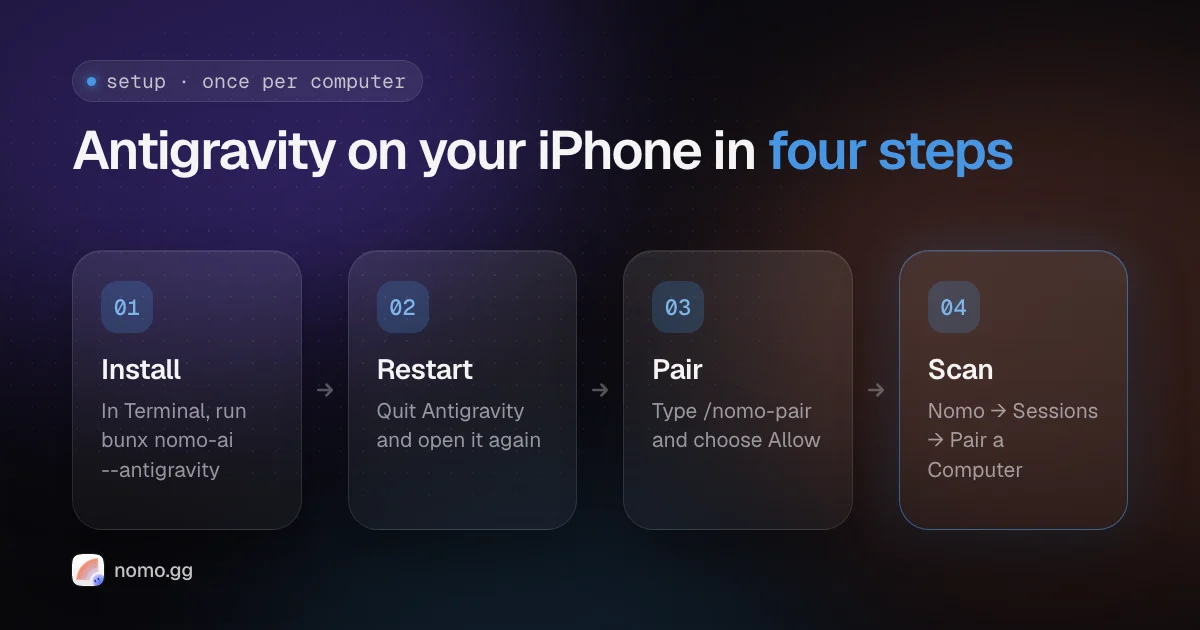
- On your Mac, run
bunx nomo-ai --antigravityin Terminal. No Bun? Usenpxinstead ofbunx. - Quit Antigravity completely and open it again. If you use
agy, restart it too. - In an Antigravity chat, type
/nomo-pair. Antigravity asks before it runs the command: choose Allow. - On your iPhone, open Nomo → Sessions → Pair a Computer and scan the QR code.
- Type
/nomo-statusto check. One line starting with ✅ means you're done.
Already paired from Claude Code or Codex? One pairing covers the whole computer, so skip steps 3 and 4.
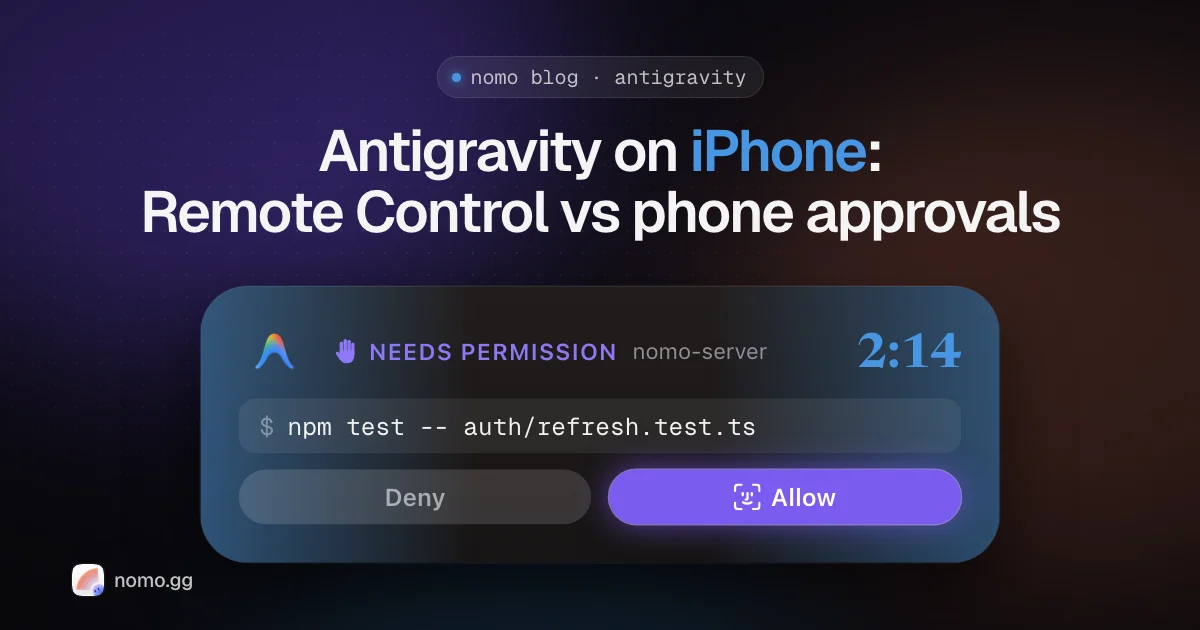
From then on, when Antigravity wants to run a command or create or change a file, the request shows up on your phone with Allow, Deny and Deny with note… buttons. Reads and searches never reach the phone. With your iPhone locked, Allow asks for Face ID first (on by default).
Two rules worth knowing. Your own Antigravity rules come first: anything they block stays blocked, and Allow on the phone can never override it. And if your phone can't be reached, Antigravity asks on the computer, as it would without Nomo.
Approving prompts: Antigravity Remote Control vs Nomo#
Yes, in two ways. With Google's Remote Control, agy's tool confirmations can be answered from the browser. The docs don't say the same for the desktop app.
With Nomo, both the desktop app and agy send their command and file-change requests to your phone. There's no Always allow: every answer is a one-time Allow or Deny. Antigravity's questions and plan reviews don't come to the phone yet, so those stay at the computer.
Replying and stopping from your phone#
Nomo can also talk back. Tap a session, then Reply, and you get a chat. Your message reaches Antigravity as if you'd typed it at the Mac, at its next step.
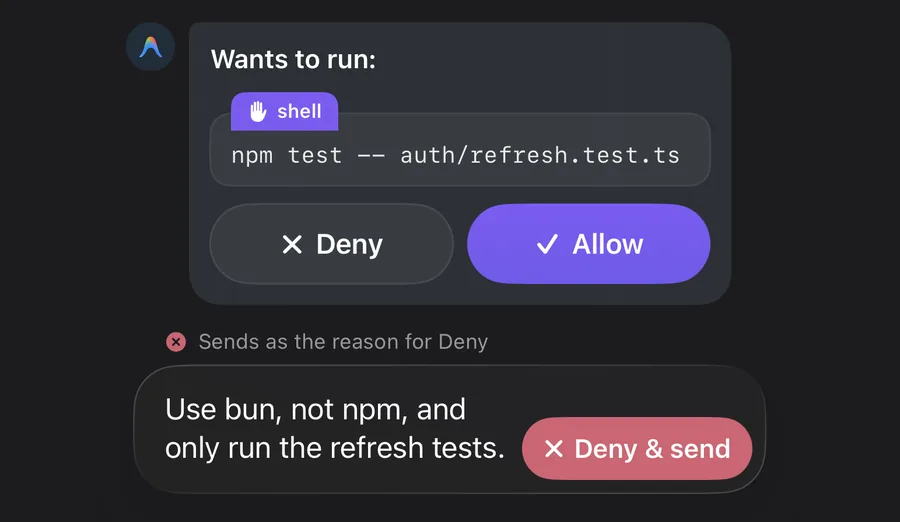
Requests show up inside that chat too. Type "use bun, not npm" while one is waiting and the send button turns into Deny & send: one tap says no and tells Antigravity what to do instead.
Where a reply lands depends on how you run Antigravity:
agy, still working: it reads your message at its next step.agy, finished and closed: your Mac starts the session again with your message.- Desktop app: replies work only while the session is working. A finished one continues on the Mac.
Interrupt works on the same Wi-Fi too (look for the green ⚡ Local chip). Antigravity finishes the step it's on, then stops, and the chat stays open for your next message.
Where Nomo fits#
If you want Antigravity on your iPhone as something you can answer from the Lock Screen, not a browser tab, that's what Nomo is for. It's free for status and usage widgets, including your Antigravity quota. Sessions, approvals and replies are Nomo Pro, $4.99 a month or $34.99 a year, billed by Apple. It needs iOS 18 or later. There's no account, and session updates are end-to-end encrypted, so Nomo's server only relays data it can't read.
It doesn't replace Antigravity or Google's dashboard. For starting tasks and reading artifacts, Remote Control is the better tool. Nomo is for the moment the agent stops and asks.
Get Nomo on the App Store, then follow using Antigravity in the docs. Using Claude Code too? See how to approve Claude Code from your iPhone.
FAQ#
Can I approve Antigravity prompts from my iPhone?
Yes. With Nomo Pro, you can Allow or Deny Antigravity's command and file-change requests from the Lock Screen or Dynamic Island, for both the desktop app and agy. Google's Antigravity Remote Control also answers agy's prompts from the browser, in interactive mode.
Is there an Antigravity app for iPhone?
Google's own way in is the Remote Control web app at antigravity.google.com. Open it in Safari, sign in with the same Google account, and add it to your Home Screen to get push notifications when an agent finishes or needs input.
Does my computer have to stay on?
Yes, for every option here. The agent runs on your computer, so it has to be awake and online. Your phone only shows what it's doing and sends your answers back.
Do Nomo's replies work away from home?
Not yet. For now, replies need your iPhone and Mac on the same Wi-Fi, with Local network turned on in Nomo. The docs say an upcoming server update lets replies work from anywhere. Allow and Deny already work away from home.
Does Nomo work with the Antigravity desktop app or only agy?
Both. Approvals work the same in each. Replies differ: a finished agy session starts again on your Mac with your message, while a desktop-app session takes replies only while it's working.